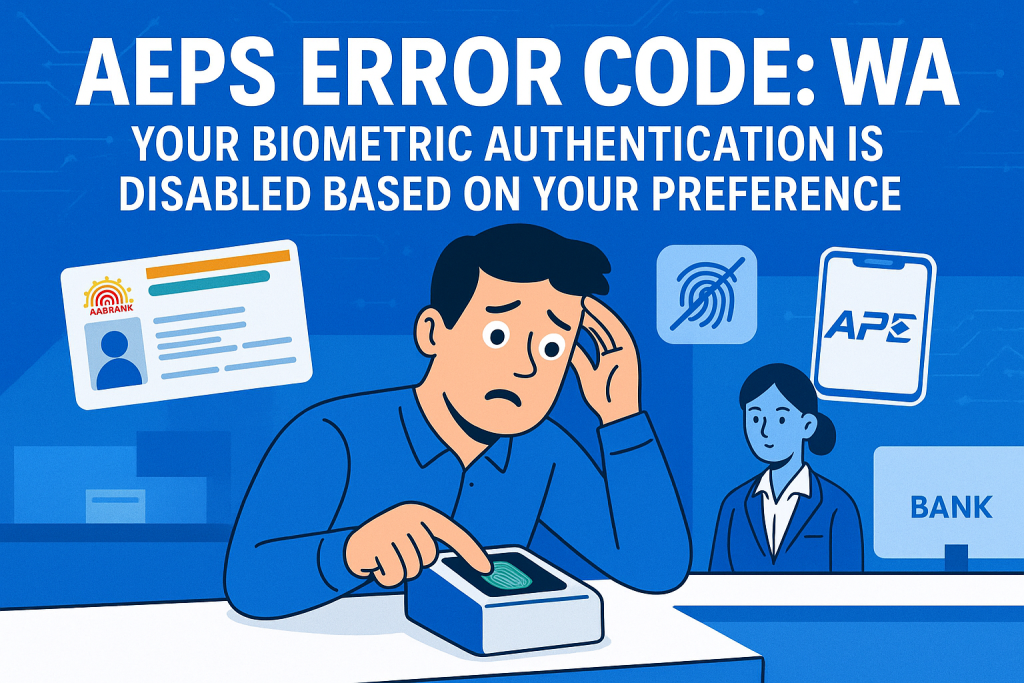
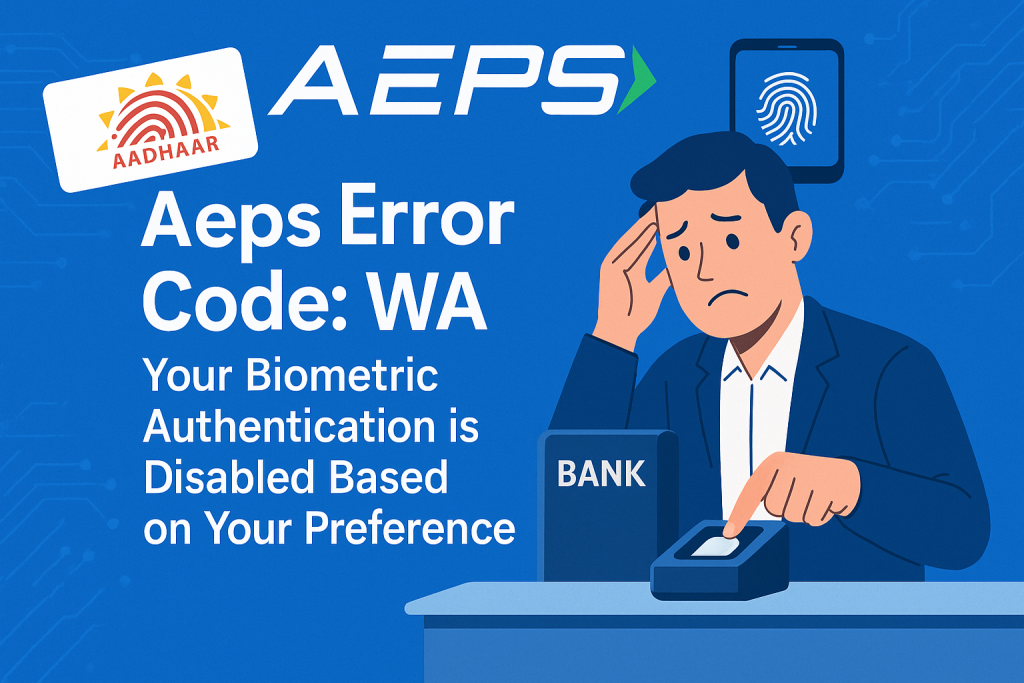
Aeps Error Code: WA – Your biometric authentication is disabled based on your preference occurs when users try to access AEPS services but their biometric authentication is intentionally turned off. This guide explains its causes, solutions, and preventive tips in simple terms.
If you are a regular user of AEPS (Aadhaar Enabled Payment System), you may have encountered Aeps Error Code: WA – Your biometric authentication is disabled based on your preference at least once. This error message can be confusing, especially if you rely on AEPS for seamless banking transactions using just your Aadhaar number and biometric verification.
In this article, we will break down what this error means, why it happens, and how you can fix it. We will also explore preventive measures and tips to avoid facing this issue in the future. By the end of this guide, you will have a thorough understanding of AEPS error code WA and its solutions.

What is AEPS?
Before diving into the error, let’s briefly understand AEPS. Aadhaar Enabled Payment System (AEPS) is a secure and convenient banking service offered by the National Payments Corporation of India (NPCI). It allows users to:
-
Perform cash withdrawals and deposits
-
Check account balances
-
Transfer funds using Aadhaar number and fingerprint authentication
AEPS works through micro-ATMs operated by banking correspondents and is widely used in rural and semi-urban areas for its simplicity and accessibility.
Understanding Aeps Error Code: WA
The error message “Aeps Error Code: WA – Your biometric authentication is disabled based on your preference” is self-explanatory but often misunderstood. Let’s break it down:
-
WA: This code specifically indicates a preference-based restriction.
-
Biometric authentication disabled: Your fingerprint or iris-based authentication method is currently inactive.
-
Based on your preference: This means you or your bank has intentionally disabled biometric authentication for AEPS transactions.
In simpler terms, AEPS is letting you know that your account is not set up to allow biometric transactions at the moment.
Why Does This Error Occur?
There are several reasons why Aeps Error Code: WA may appear:
-
User Preference Settings
Sometimes, users or account holders disable biometric authentication due to privacy concerns or personal choice. -
Bank-Imposed Restrictions
Some banks provide an option to disable biometric authentication for added security, especially if the account has suspicious activity. -
Device or Software Configuration
Outdated AEPS app versions or incompatible devices can trigger this error. -
Temporary System Glitch
Occasionally, NPCI or bank servers may temporarily block biometric transactions, causing this error to appear.
How to Fix Aeps Error Code: WA
Here are practical solutions to resolve this error:
1. Enable Biometric Authentication in Your Bank Account
-
Visit your bank branch and request to activate biometric authentication.
-
Some banks may require a valid Aadhaar-linked ID for verification.
2. Check Your AEPS App Settings
-
Ensure the latest version of your AEPS app is installed.
-
Navigate to settings and check if biometric authentication is enabled.
3. Update Your Device Software
-
Outdated device software may cause compatibility issues.
-
Update your smartphone or micro-ATM device to the latest version.
4. Contact Customer Support
-
If the error persists, contact your bank’s AEPS support or NPCI helpline.
-
Provide details like Aadhaar number, transaction type, and device used.
5. Use Alternate Transaction Methods
-
Until biometric authentication is enabled, you can perform AEPS transactions using MPIN or password-based authentication.
Preventive Tips to Avoid AEPS WA Error
-
Regularly Update AEPS Apps – Keep your AEPS app updated to the latest version.
-
Enable Biometric Authentication – Avoid disabling it unless necessary.
-
Maintain Device Compatibility – Ensure your device supports the biometric module.
-
Monitor Bank Account Settings – Check for any restrictions set by your bank.
-
Secure Aadhaar Linking – Always link your Aadhaar with a bank account securely to avoid system errors.
Real-Life Case Study
Case: A rural banking correspondent in Rajasthan faced repeated Aeps Error Code: WA while helping villagers withdraw cash. Upon investigation, it was discovered that the bank had temporarily disabled biometric transactions due to a recent security update. Once the update was applied and biometric authentication was re-enabled at the bank, the error disappeared.
Insight: This highlights the importance of verifying bank settings and keeping AEPS systems updated.
Frequently Asked Questions (FAQs)
Q1: Can I still use AEPS without biometric authentication?
Yes, you can use MPIN or password-based authentication temporarily until biometric authentication is enabled.
Q2: How long does it take to resolve the WA error?
Typically, once biometric authentication is enabled at the bank and device settings are updated, the issue is resolved immediately.
Q3: Is it safe to enable biometric authentication?
Yes, AEPS is regulated by NPCI and uses secure encryption, making it safe for transactions.
Q4: Will this error affect all AEPS transactions?
Yes, any biometric-based transaction will fail until authentication is enabled.
Conclusion
Aeps Error Code: WA – Your biometric authentication is disabled based on your preference is primarily a preference-based or bank-imposed restriction. Understanding why it occurs and following the above solutions can help you quickly resolve the issue and resume smooth AEPS transactions.
Remember, keeping your AEPS app and devices updated, enabling biometric authentication, and monitoring bank preferences are key preventive measures. AEPS remains one of the most convenient ways to perform banking transactions securely, and minor issues like the WA error can be resolved with simple steps.
Disclaimer: This post is made for educational purposes only. If you have any problems with this post, please visit the DMCA page and follow the guide related to the removal of the post. Always verify ownership or issues related to AEPS transactions with your bank.